
When setting a daily cap or delivery schedule for regular feeds, you also have the option of enabling the “Do not miss data” switch. Let’s quickly go over what it does.
Here is the checkbox we’re talking about. Note, that it is only available on Regular Feeds and ONLY if you set a daily cap.
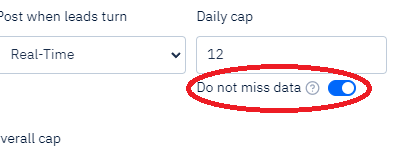
This same switch will be shown when a Delivery Schedule is configured with a specific delivery times of day window – directly below the times-of-day dropdowns.
To understand what this feature does, it helps to walk through a scenario. Imagine you have a list “ABC” that received 100 leads every day. Let’s further imagine you have an order that sends that data out to a client. The order has a daily cap of 10. When the order is done sending the 10 leads, what happens to the remaining 90 every day? Well, you have 2 options.
Option 1. Leave the “Do no miss data” switch unchecked as in:
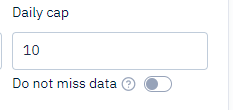
This will ensure that your order each day sends out only 10 freshly received leads by list “ABC”, thus “missing” the 90 leads that the cap does not include. This scenario is usually preferred when your list gets new data every day.
Option 2. Check the “Do no miss data” switch as in:
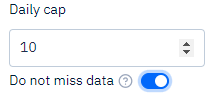
This will ensure that when your order reaches the daily cap of 10, it “does not miss” the remaining 90 when it start posting again (with a fresh cap) the following day. This scenario is usually preferred when you upload data to your list, say, once a week and want ALL of that data to eventually be posted to a client with a daily cap in place.
The same principle applies to a Delivery Schedule. For example, if an order is configured to deliver leads only between 8:00 AM and 5:00 PM, when the delivery window closes, you must determine whether the order should move on to fresh data when the next window begins or continue delivering previously available data.